
As a teacher you'll use the Communex app on your phone. It shows the lessons you teach, lets you mark attendance in a few taps, set homework and write feedback that parents see straight away.
This guide follows a normal teaching day. The screens show a fictional teacher, Mei Ling Tan, at a fictional school called Demo Academy. What you see may be a little different if your school has given you more or fewer permissions.
Install the app and sign in
Get the Communex app, choose Teacher and sign in with the account your school gave you.
- Install the Communex app from the App Store (iPhone) or Google Play (Android). No phone to hand? Open app.communex.my in a browser.
- Open the app and choose Teacher at the top.
- Enter the email and password your school gave you and tap Sign in.
- The first time, you'll be asked to choose your own password.
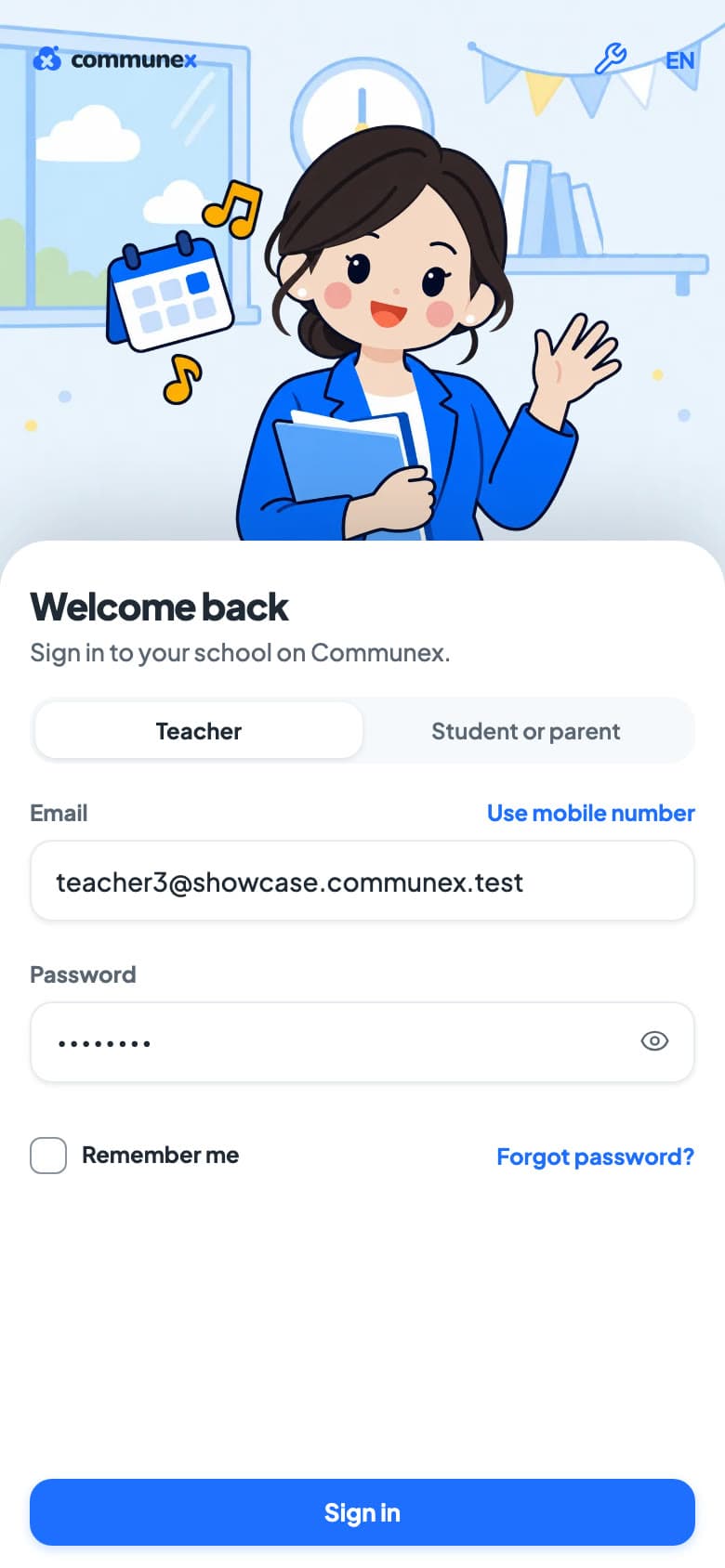
- Tick Remember me so you stay signed in on your own phone.
- Forgot your password? Tap Forgot password? on the sign-in screen.
Your Home screen
Home shows the lesson that's on now, the rest of today and shortcuts to the things you do most.
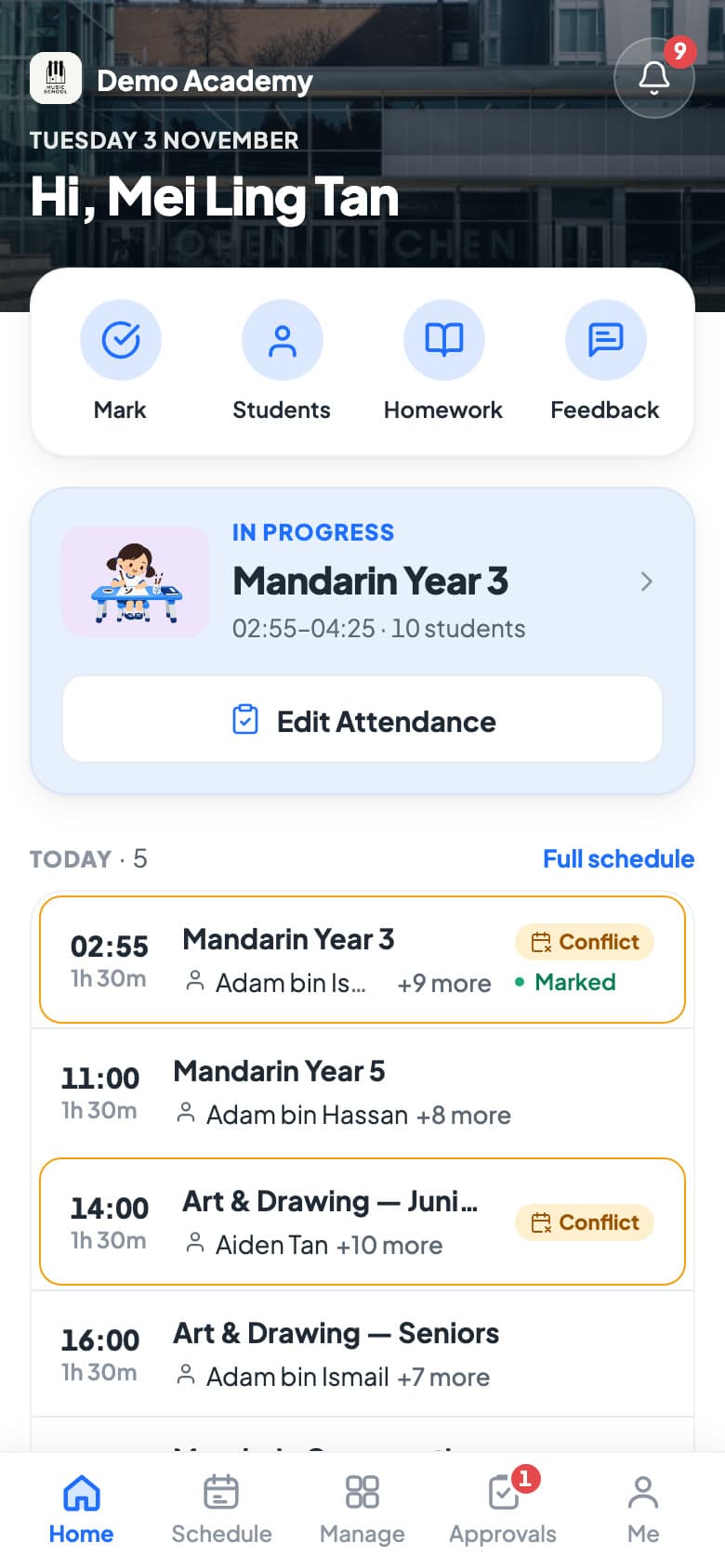
- The card at the top is the lesson that's on now, or your next one. Tap Take attendance to mark it.
- Under Today you'll find the rest of today's lessons. Tap Full schedule to see more.
- The shortcuts take you straight to Mark (attendance), Students, Homework and Feedback.
- The bell at the top right shows your notifications. A number means something is new.
Along the bottom are five tabs:
- Home: today.
- Schedule: your timetable by day, week or month.
- Manage: school tools. What you see here depends on what your school lets you do.
- Approvals: leave requests from your students, and your own leave.
- Me: your profile, availability, calendar and settings.
Your timetable
See every lesson you teach, open one to see who's coming, and add your timetable to your phone's calendar.
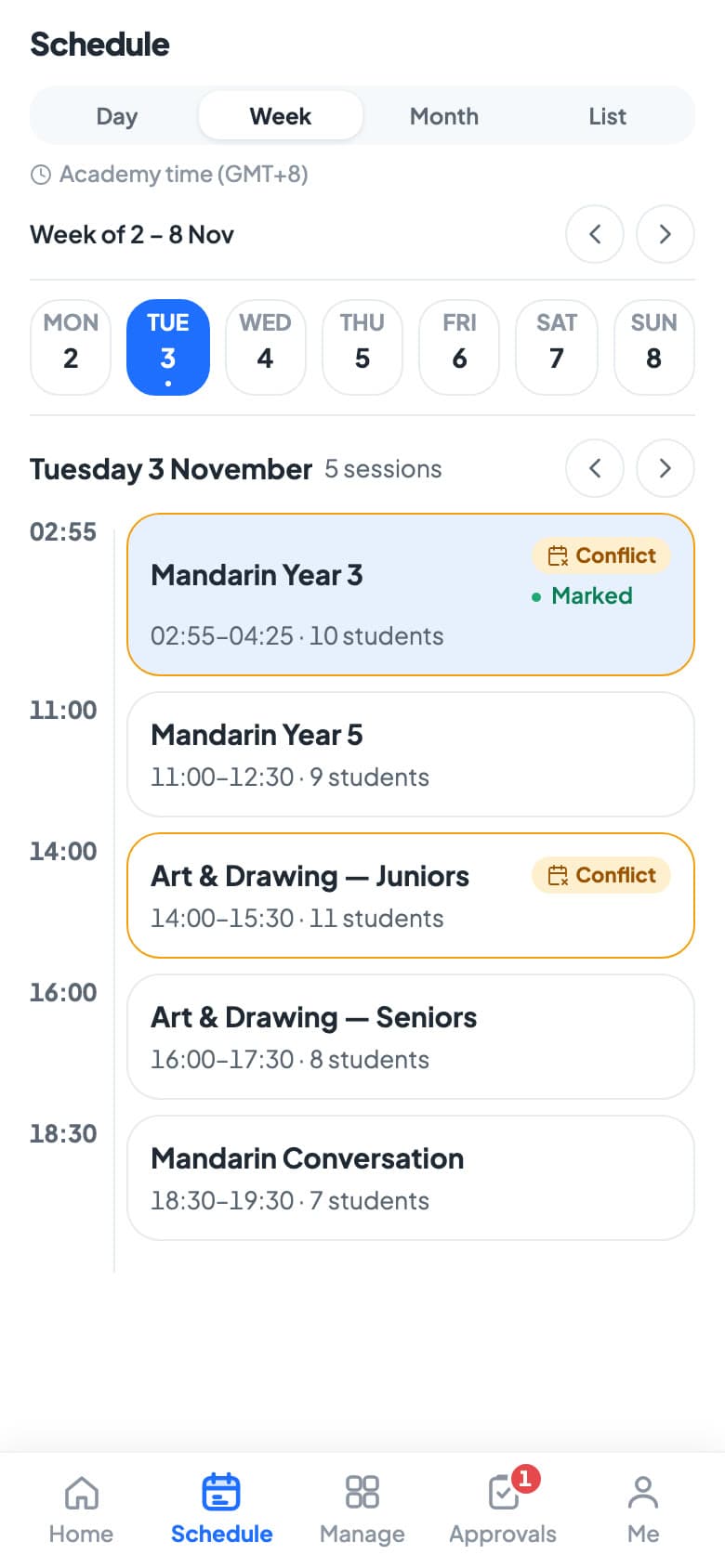
- Tap Schedule at the bottom.
- Switch between Day, Week, Month and List at the top.
- Tap any lesson to open it.
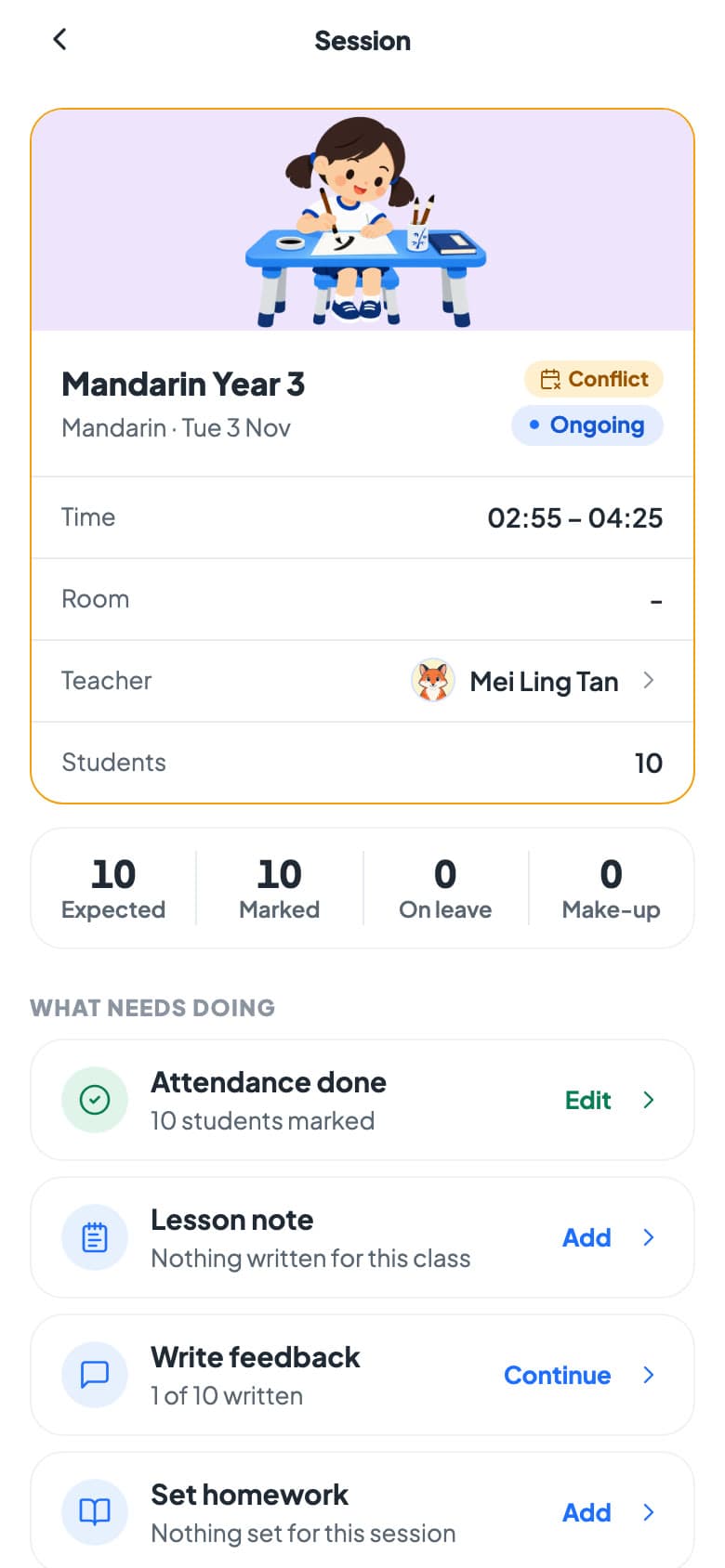
The Session screen shows the time, room and students, how many are expected, on leave or coming for a make-up, and a short list of what still needs doing: attendance, a lesson note, feedback and homework.
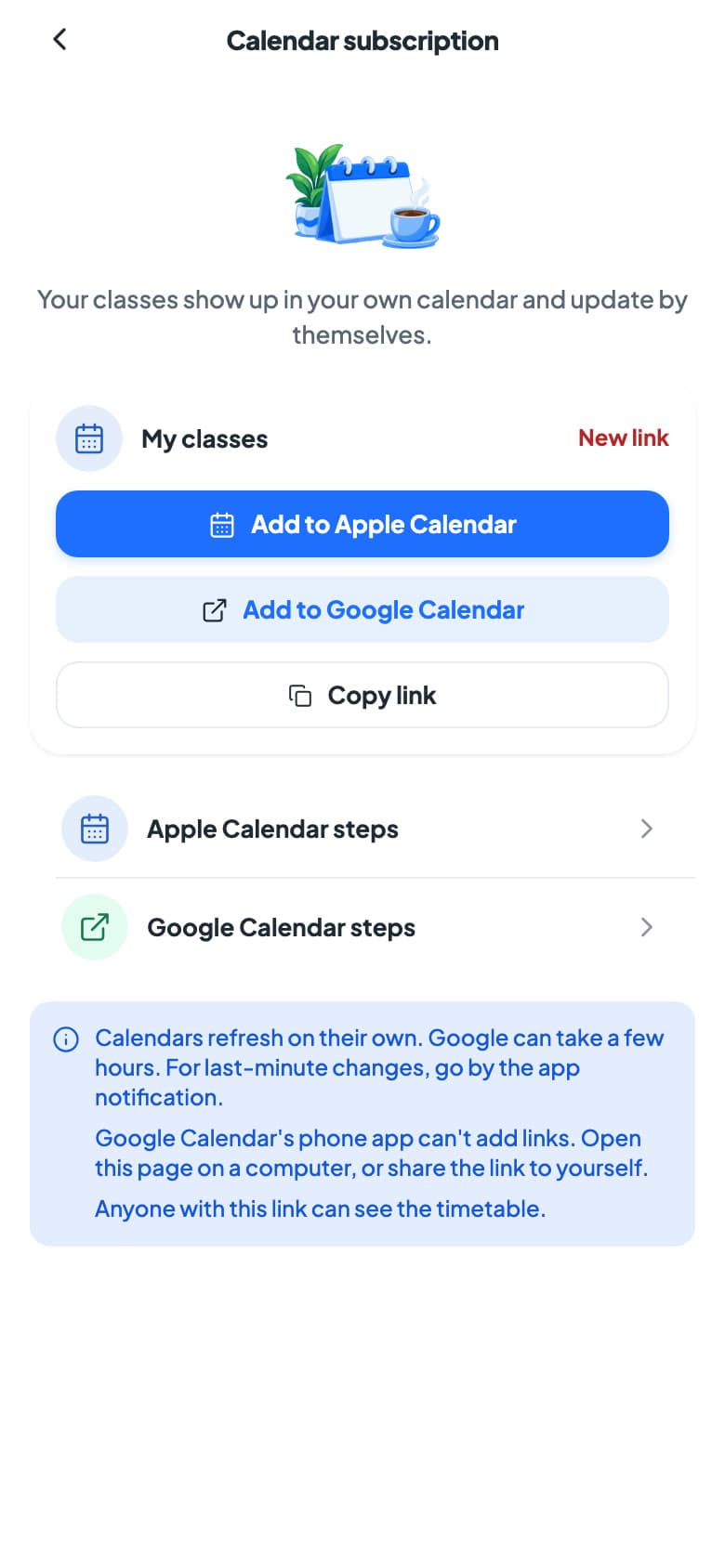
Want your lessons in your phone's own calendar? Subscribe once and it keeps itself up to date.
- Tap Me, then Calendar subscription.
- Tap Add to Apple Calendar or Add to Google Calendar and follow the steps.
Mark attendance
Mark attendance at the start of every lesson. It takes a few seconds and parents see it straight away.
- On Home, tap Take attendance on the lesson that's on now. (Or tap Mark, or open the lesson from Schedule.)
- Everyone starts as Present.
- For a student who isn't there, tap Absent and type a reason if you know it, for example Sick.
- For a student who arrives late, tap Late. The minutes late are filled in for you.
- Tap Save.
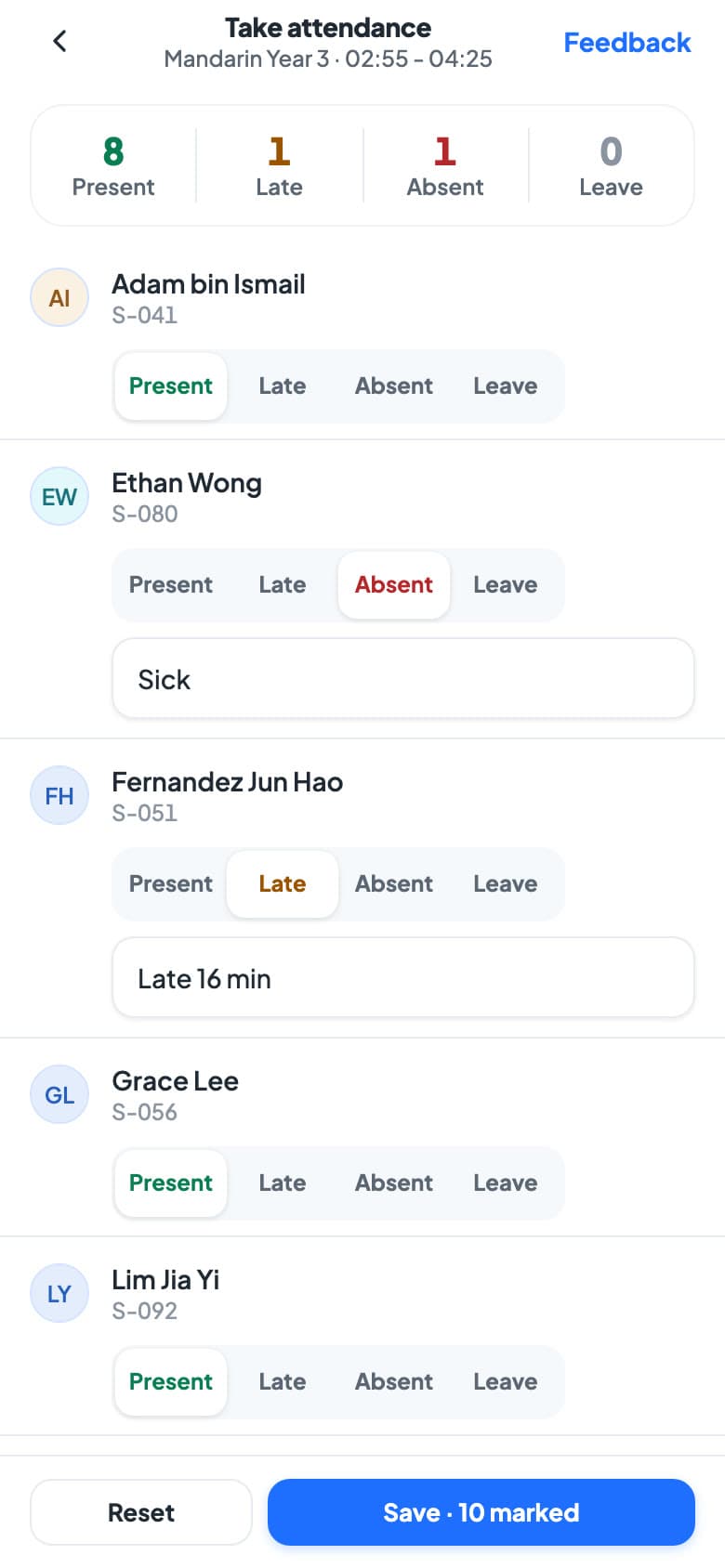
When you save, parents see the record in their app and students on a lesson package use one credit. Made a mistake? Open the lesson again and tap Edit Attendance.
Set homework
Set homework for a lesson. Students and parents are told and can hand it in from the app.
- On Home, tap Homework, then tap + at the top right.
- Leave Assign to on A session and tap Session to choose the lesson.
- Type a Title and, if you like, a Description with the instructions. You can attach files too.
- Tap Due date and pick the day.
- Tap Publish, then Confirm. The students get it and families are notified.
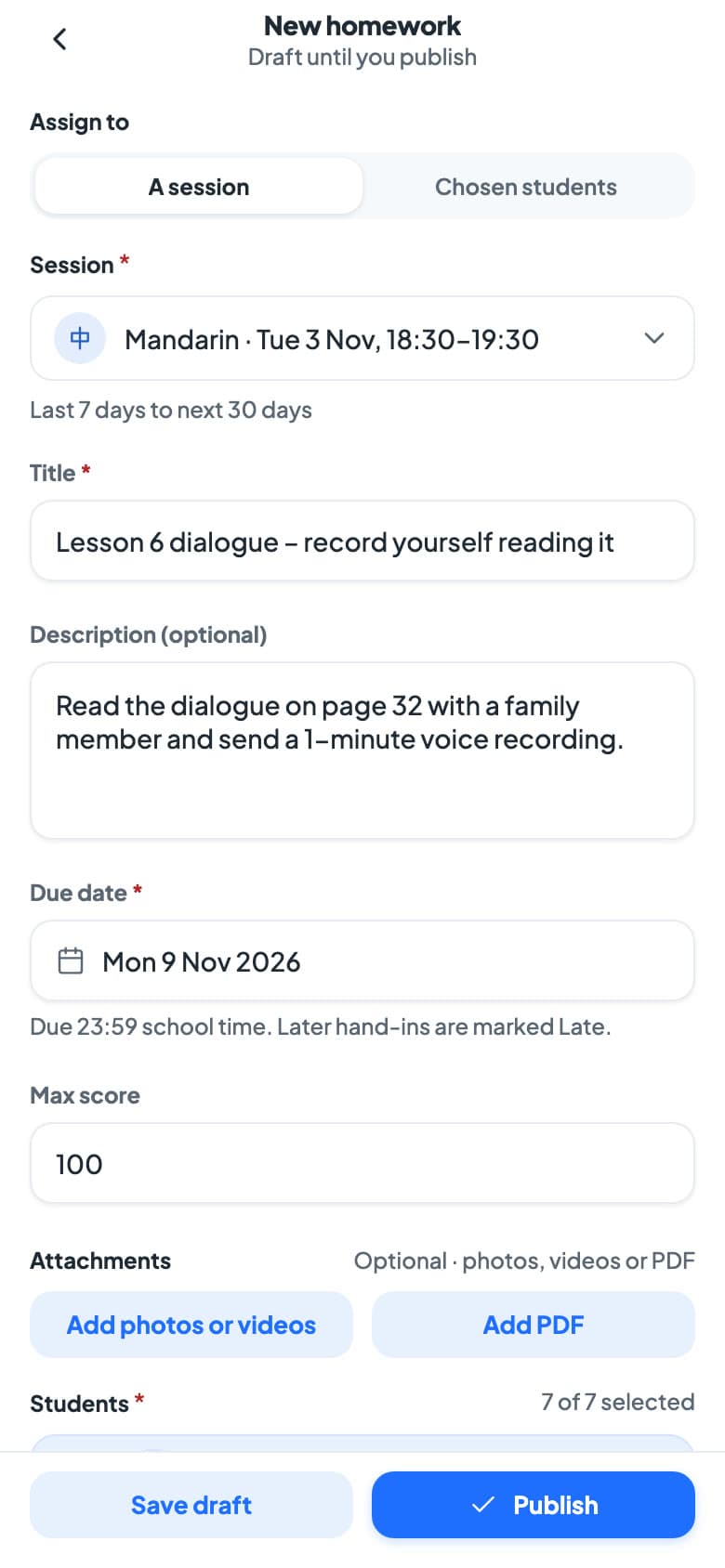
- Not ready yet? Tap Save draft instead of Publish.
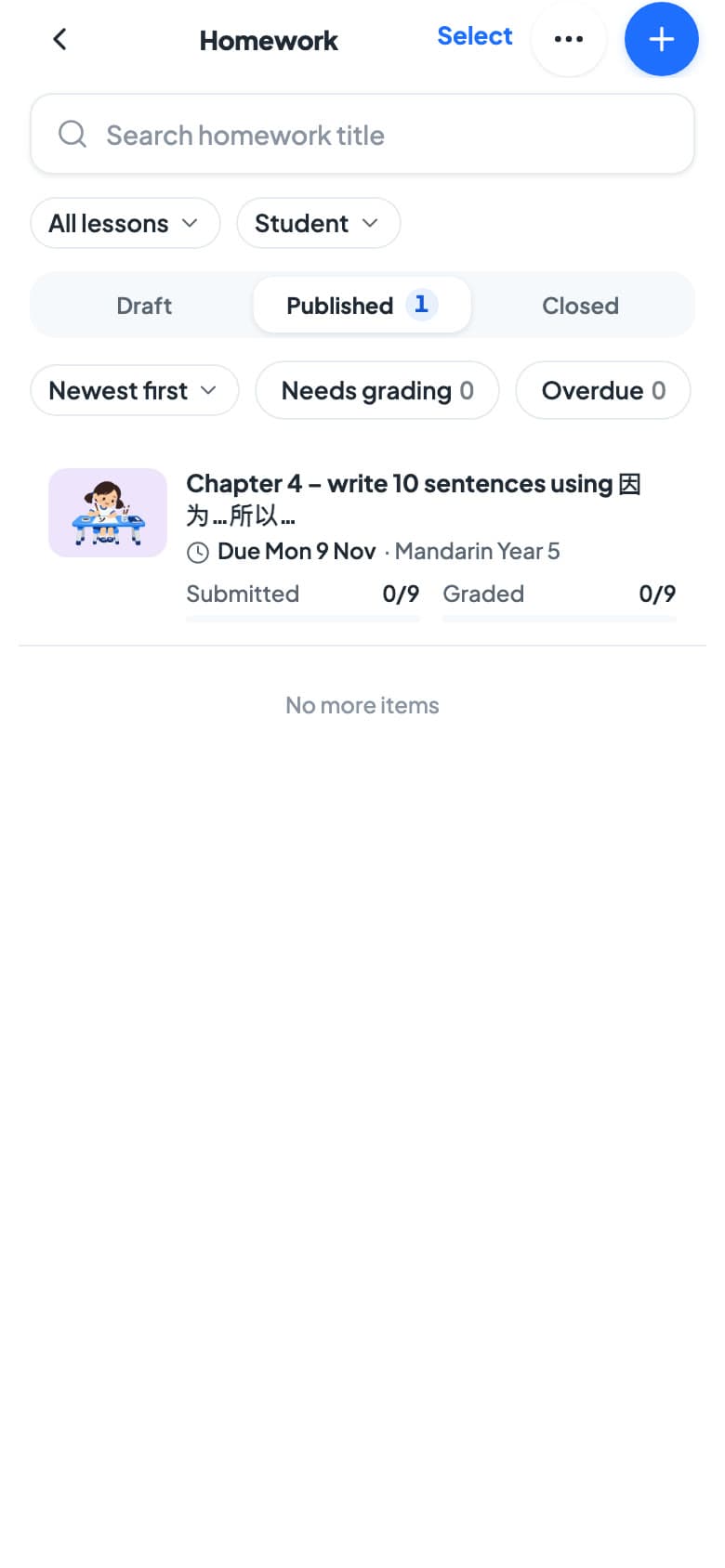
- The Homework list shows what's been handed in. Needs grading and Overdue show what's waiting.
- Open a homework to see each student's work and give a score.
Write feedback after the lesson
A line or two per student after class. Students and parents see it right away.
- On Home, tap Feedback. The Session reviews screen opens.
- Tap Write reviews and choose the lesson you just taught.
- For each student, type how they did in the box. Tap the stars to add a rating if you like.
- Tap Publish all, then Confirm.
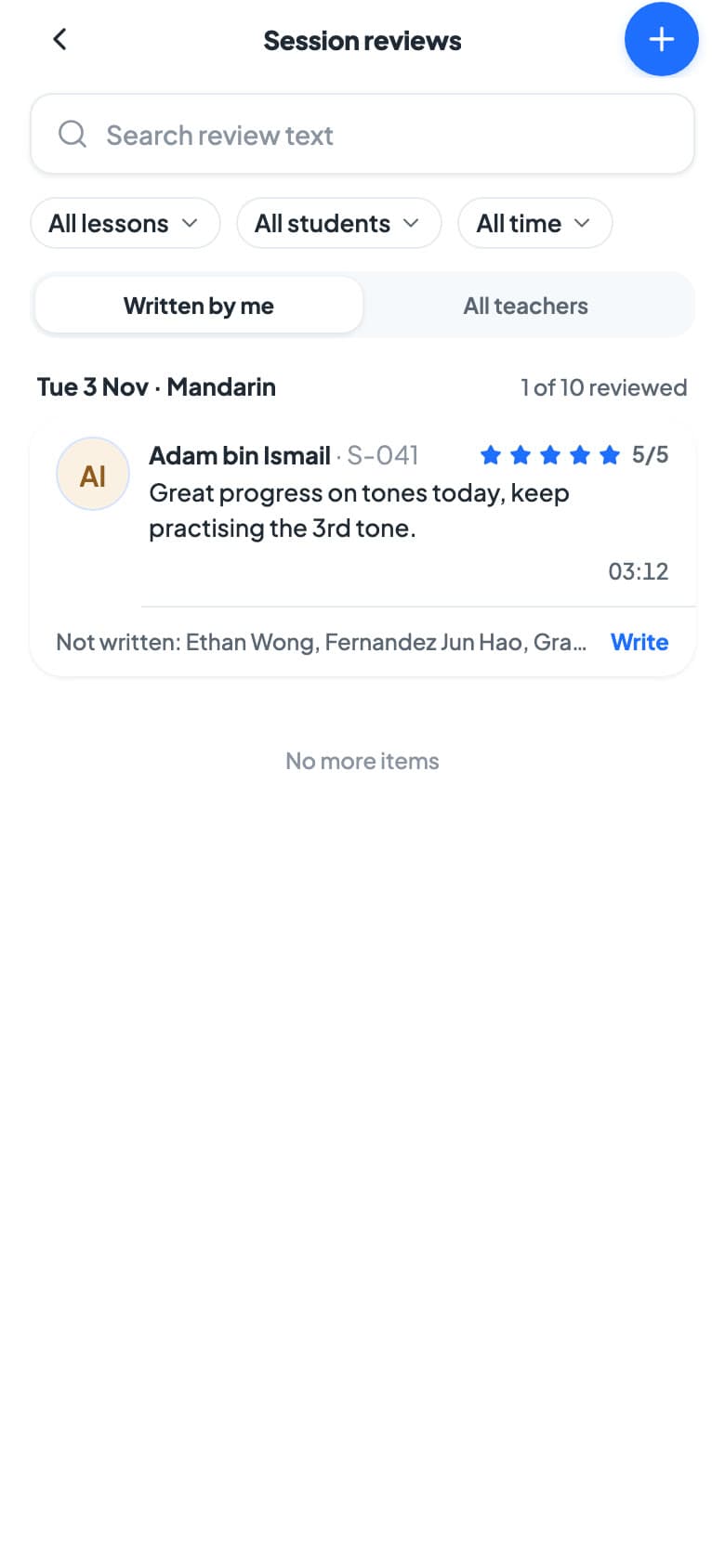
You can also open a lesson from Schedule and tap Write feedback, or Add a lesson note for what the class covered.
Your students and their growth
See the students in your lessons, how they're doing, and record milestones.
- On Home, tap Students. You'll see the students in your lessons, grouped by lesson.
- Tap a student to open their profile.
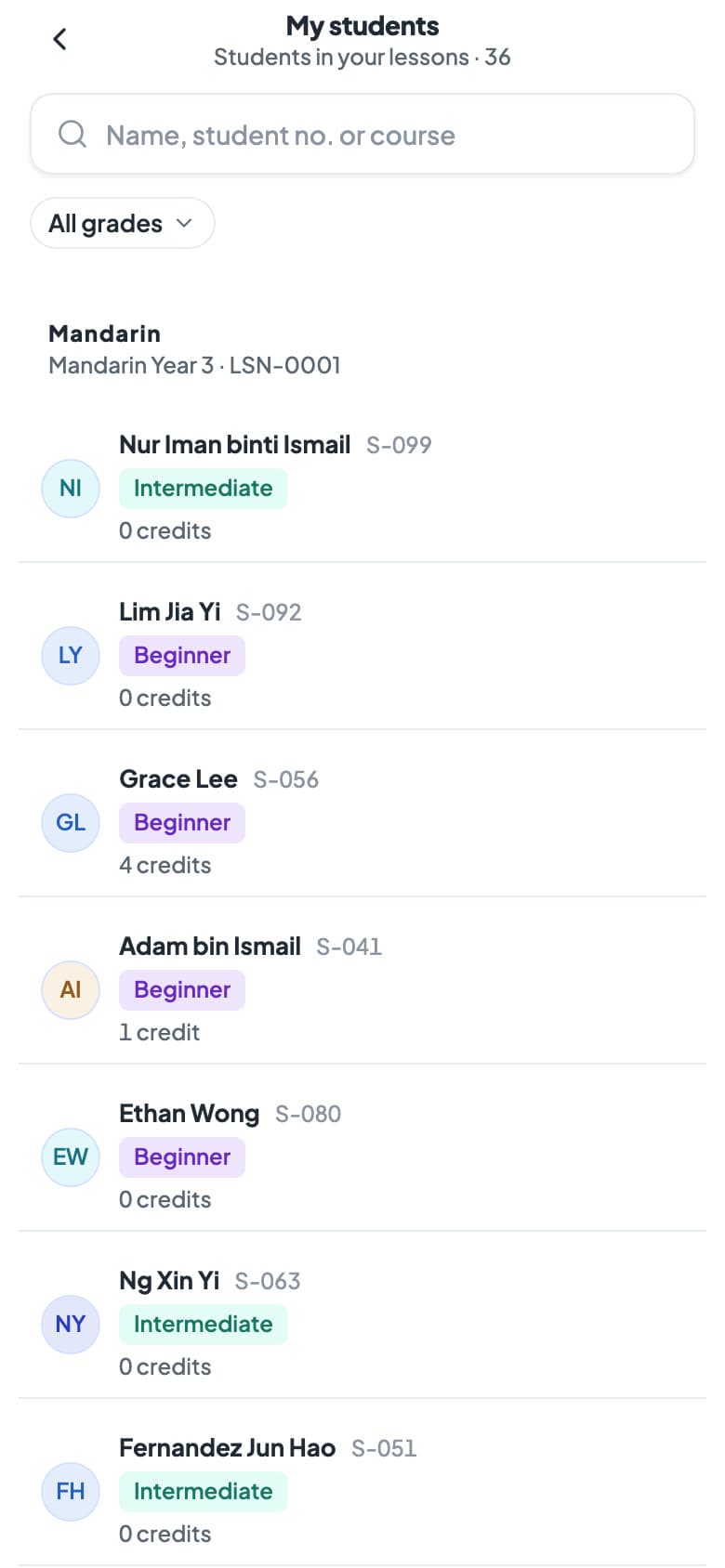
A student's profile shows their classes, attendance, homework and growth. Needs attention points out anything to act on, such as credits running low.
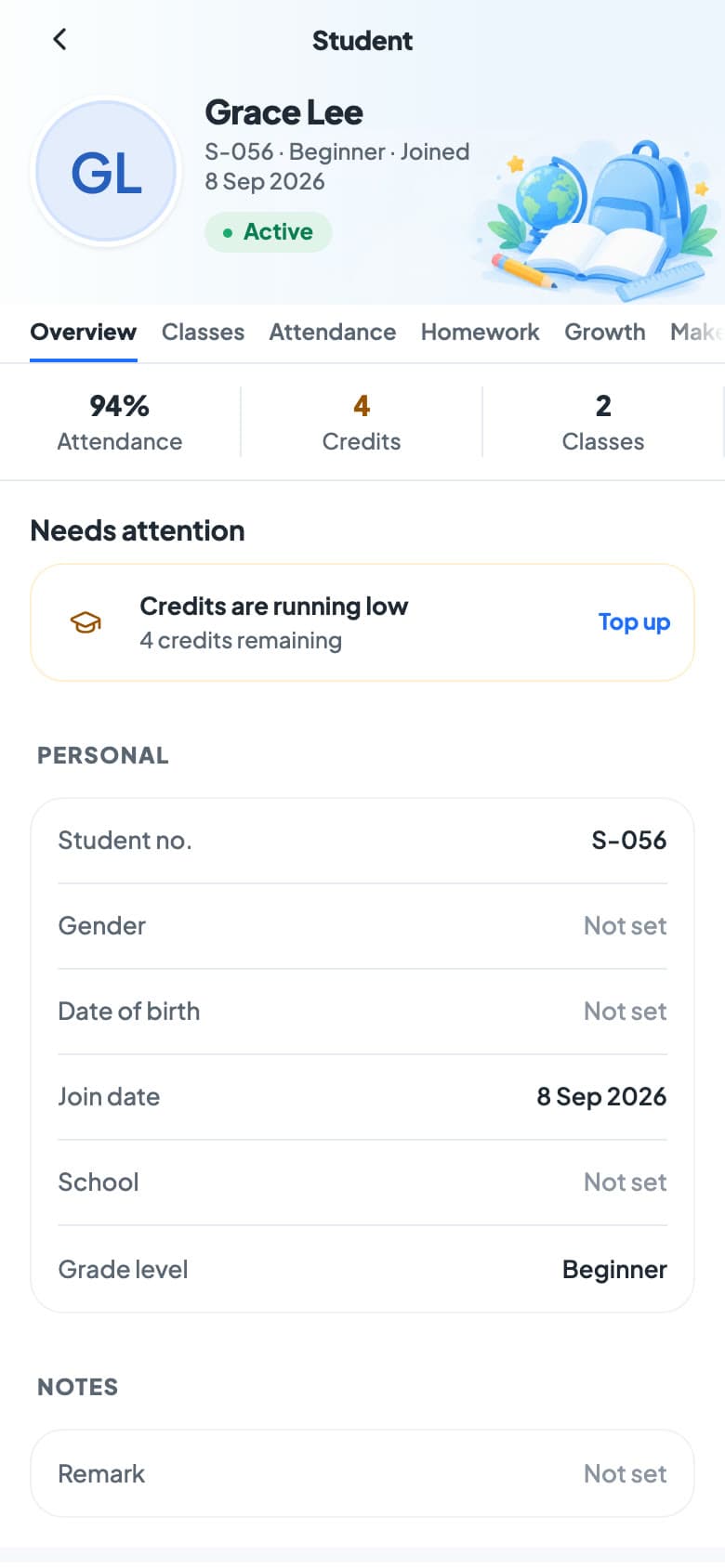
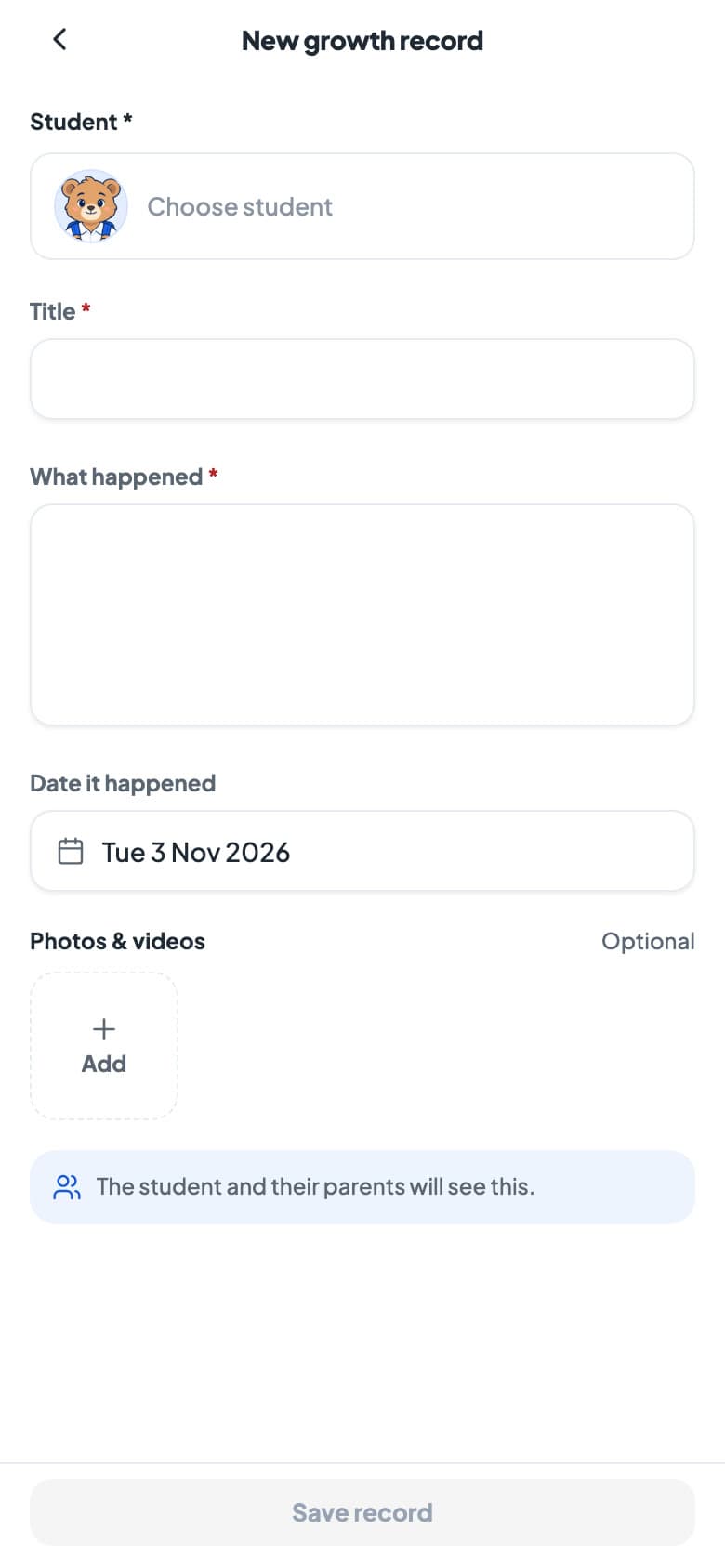
Growth records are milestones parents can look back on: a first performance, a level passed, a big improvement.
- On the student's profile, open the Growth tab and tap Add growth record.
- Write a Title and What happened, pick the date and add photos or videos if you have them.
- Tap Save record.
Approve your students' leave
When a parent applies for leave for your lesson, you or the office can approve it.
- Tap Approvals at the bottom. Student leave shows requests for your lessons.
- Tap a request to see the dates, the reason, the lessons affected and when the family would like a make-up.
- Tap Approve, then Approve leave. Or tap Reject and say why.
- A Pick makeup time sheet opens. Choose a time and tap Confirm, or Cancel to arrange it later.
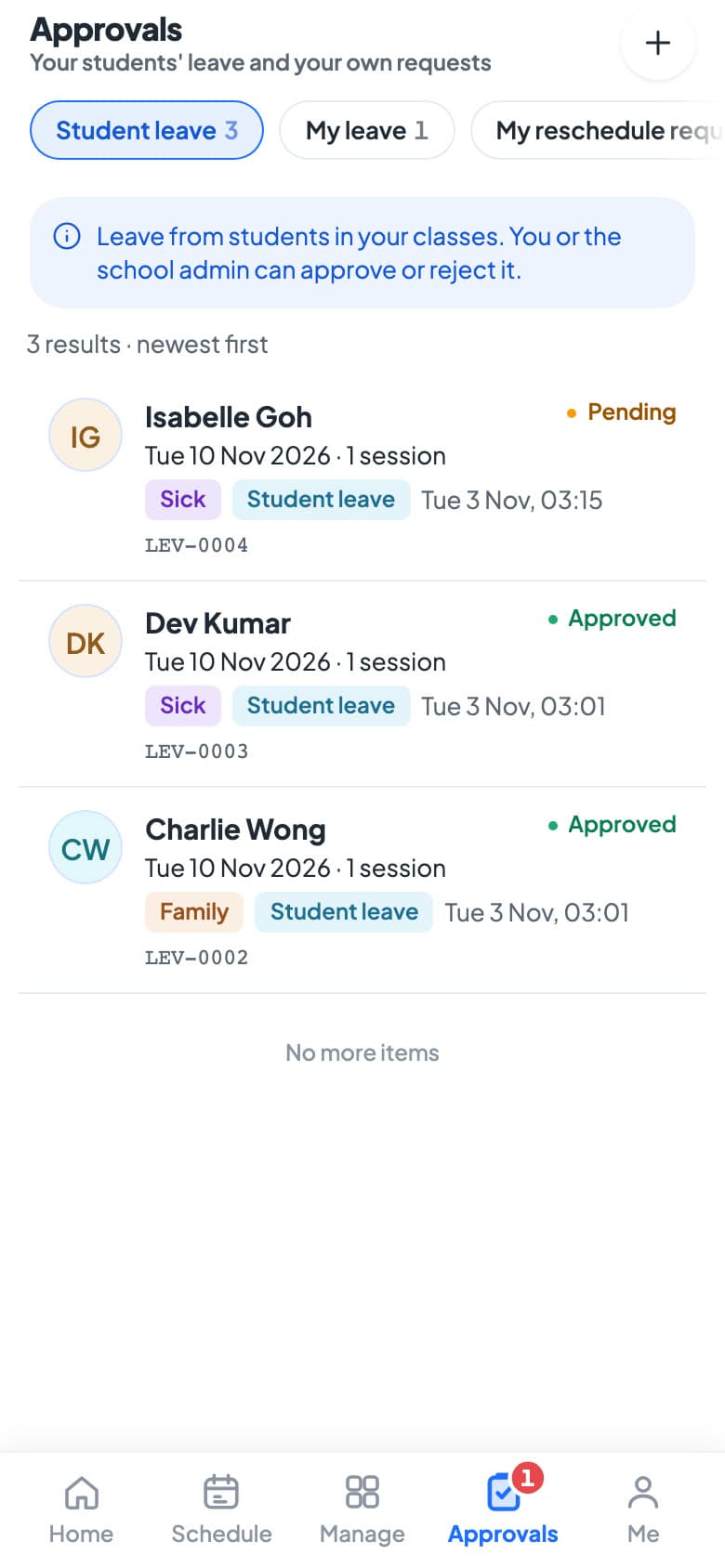
You or the school admin can approve it. Approved leave frees the student's seat and, where your school's rules allow, gives their lesson credit back.
Apply for your own leave
Tell the school early. Pick the days and the lessons you'll miss, and the admin arranges cover.
- Tap Me, then My leave.
- Tap + at the top right.
- Choose the leave type, then the Start date. Change the End date for more than one day.
- Type the Reason and a Contact during leave number.
- Check Affected sessions: the lessons you'll miss are ticked.
- Tap Submit request.
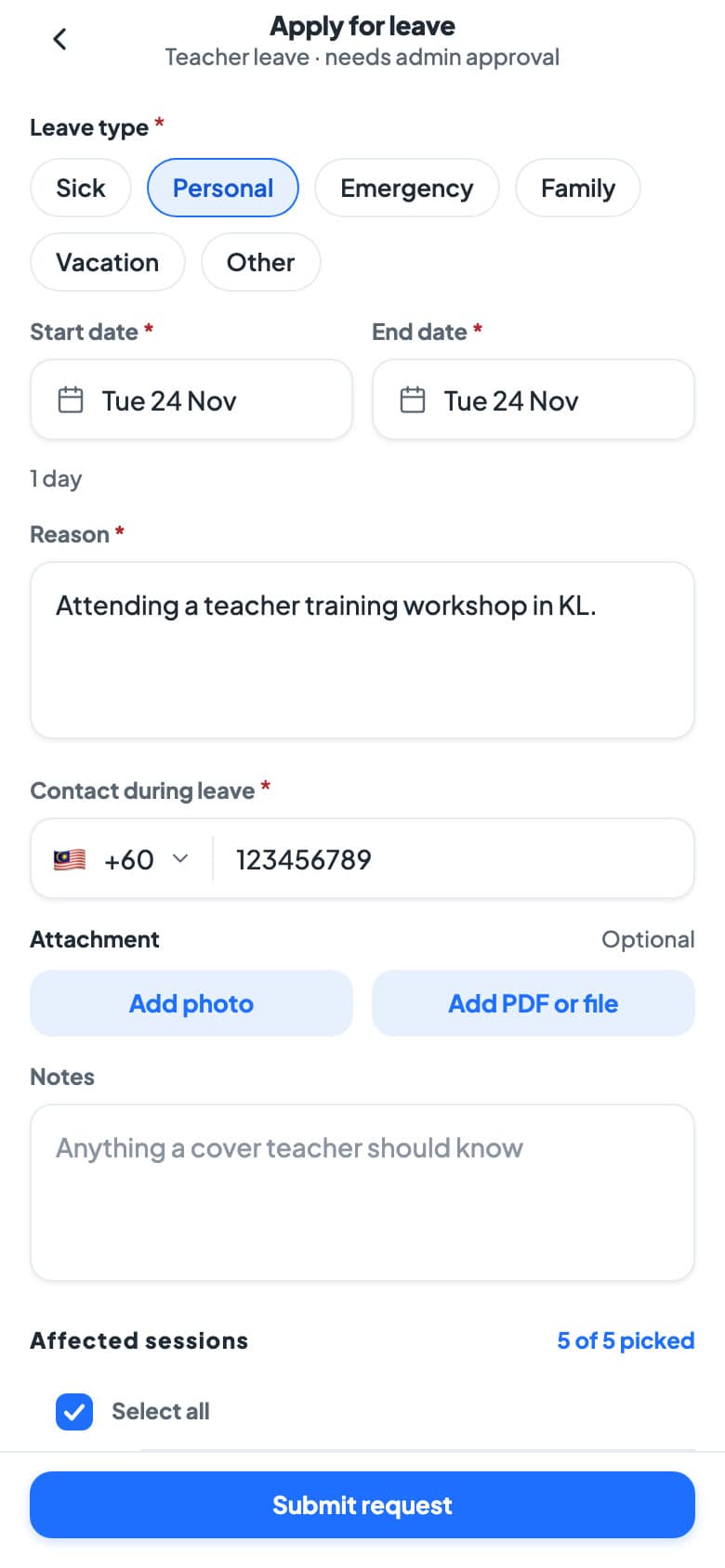
Your request shows as Pending under My leave until the school admin approves it. You'll get a notification either way, and the school arranges cover for your lessons.
Set your availability
Tell the school when you can take extra lessons, such as 1-to-1s, flexi classes and make-ups.
- Tap Me, then My availability.
- Add the hours you're free each week, for example Monday 15:00 to 19:00.
- Under Date exceptions, block any day you're away.
- Tap Save weekly hours.
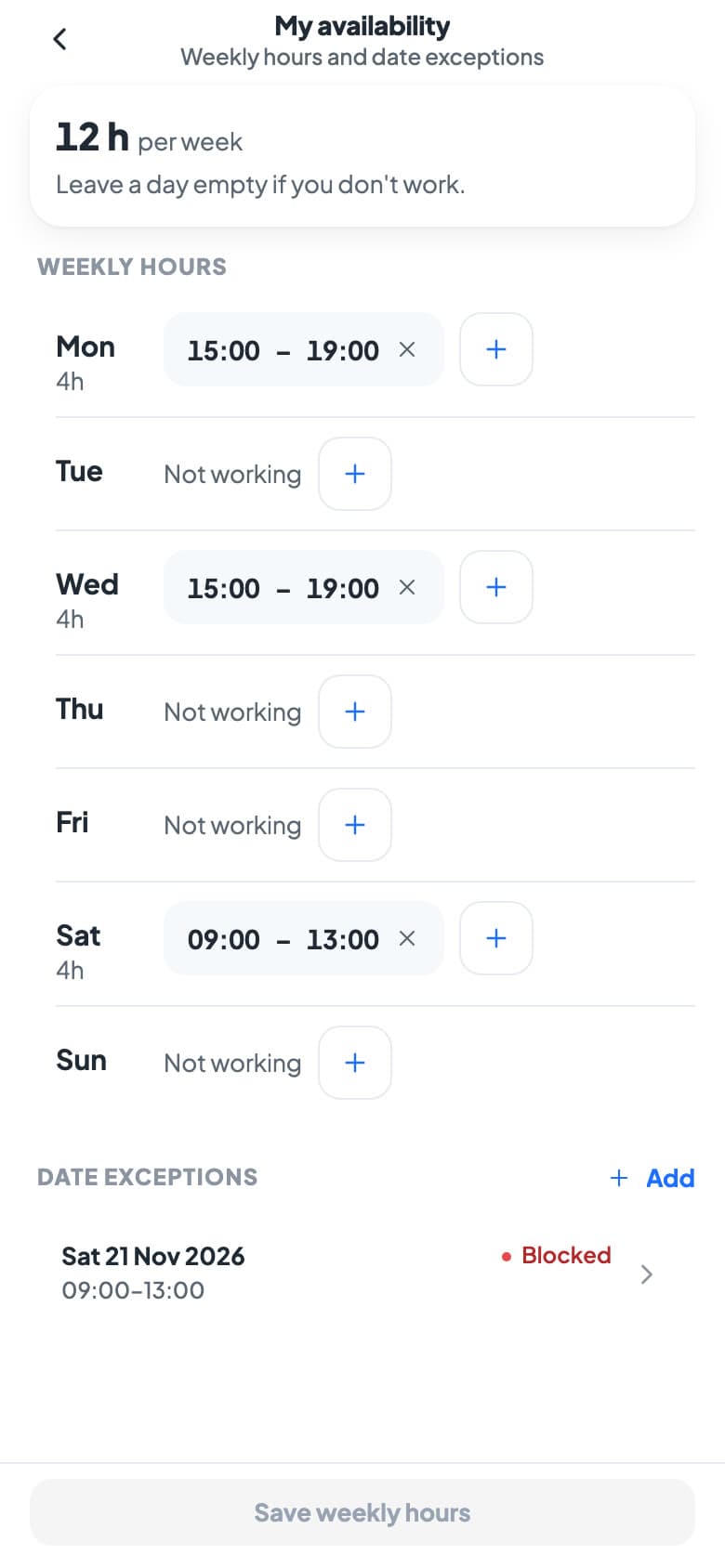
If your school offers flexi classes or make-up bookings, families can only book you inside these hours. Keep them up to date.
Notifications and announcements
Leave, homework and lesson changes come to your notifications, and school news to Announcements.
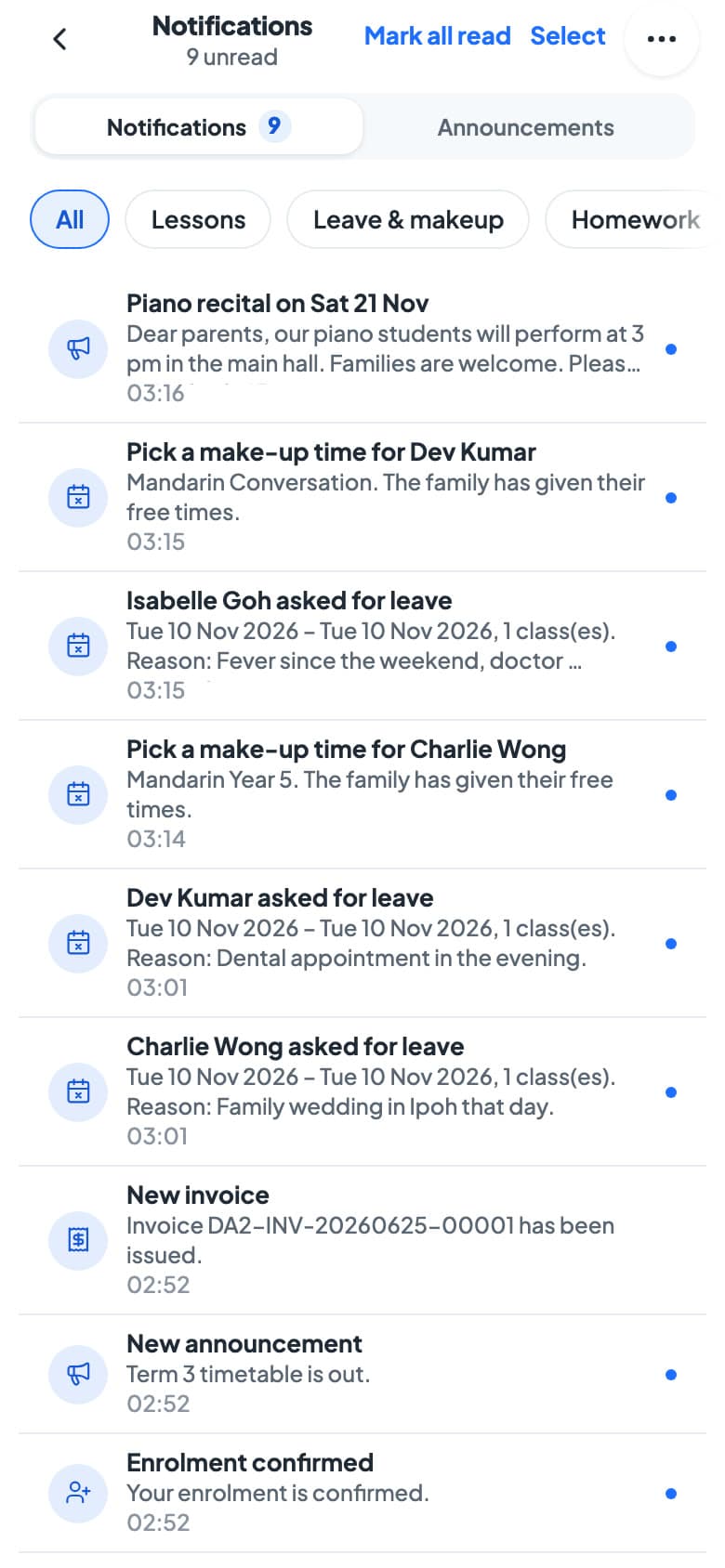
- Tap the bell on Home to open your notifications.
- Use the filters to see only Lessons, Leave & makeup or Homework.
- The Announcements tab has news the school has sent to everyone.
- When the app asks, allow notifications so you hear about lesson changes and leave requests.
Your profile and settings
Me has your profile, your own tools and your settings.
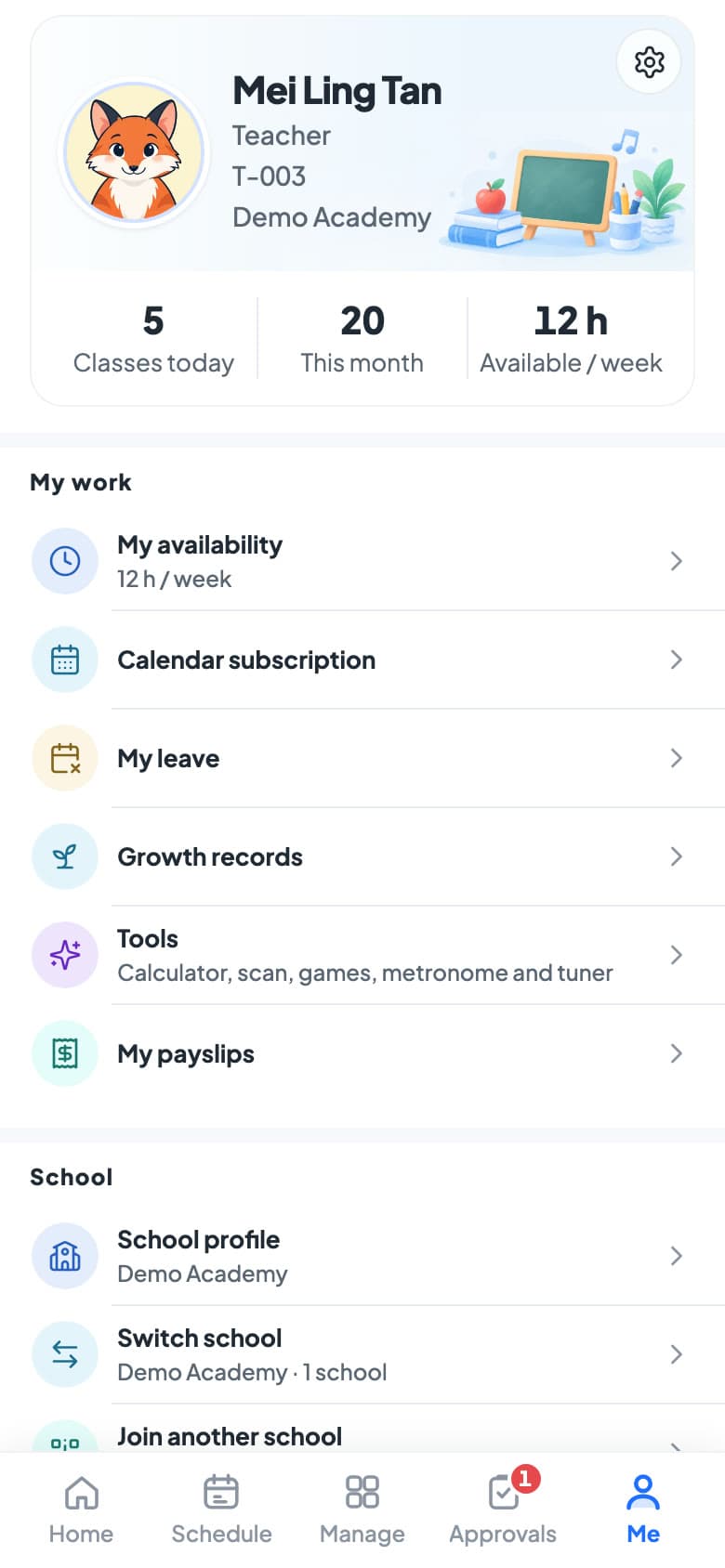
- Tap your profile card to change your photo, contact details and subjects.
- My work has My availability, Calendar subscription, My leave, Growth records and Tools.
- Tap the gear for settings: language, password and notifications.
Your routine
Before class
- Check Home for today's lessons
- Look for Conflict labels and Needs attention
- Have the app open when class starts
In and after class
- Mark attendance at the start
- Write a line of feedback for each student
- Set homework before you leave
Every week
- Clear Approvals → Student leave
- Apply for your own leave as early as you can
- Keep My availability up to date
Still stuck? We're happy to walk you through it.